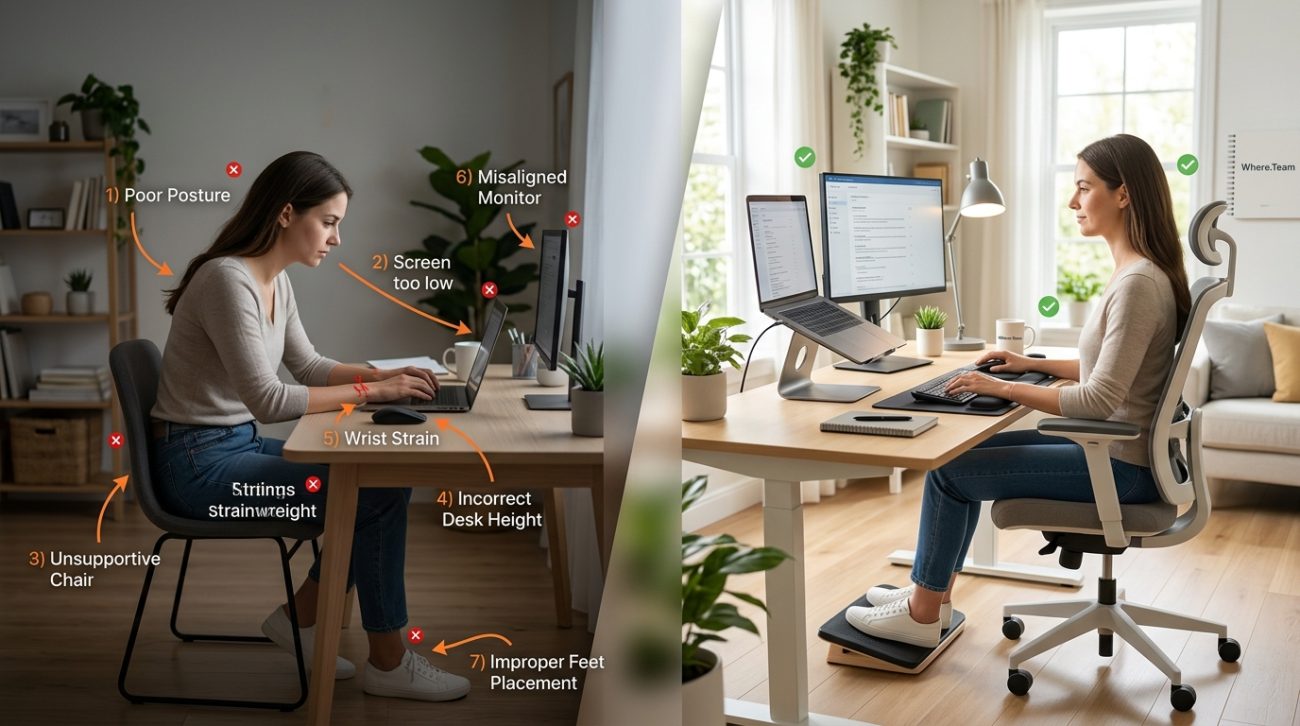
Your lower back aches after every video call. Your neck feels stiff by lunchtime. Your wrists throb when you’re trying to finish that last email of the day. Sound familiar? You’re not alone. Most remote workers set up their home office in a hurry and pay the price with chronic pain that gets worse every week.
Remote workers commonly make seven ergonomic mistakes that cause back pain, neck strain, and wrist issues. These include poor monitor height, inadequate chair support, incorrect keyboard position, and bad posture habits. Most fixes require minimal investment and can be implemented today using household items, proper positioning, and simple movement breaks throughout your workday.
Working from your couch destroys your spine
Laptops on coffee tables feel comfortable for about 20 minutes. Then your neck starts craning forward. Your shoulders hunch. Your lower back curves in ways it shouldn’t.
The problem? Your couch wasn’t designed for eight-hour work sessions. Neither was your kitchen table or your bed.
Your spine has natural curves that need support. When you slouch on soft furniture, those curves flatten or reverse. The muscles in your back work overtime to hold you upright. That’s why you feel exhausted even when you’ve been sitting all day.
The fix: Move to a proper chair at a proper desk. If you don’t have a desk, create one. A sturdy table works fine. The key is having a flat, stable surface at the right height.
Your elbows should bend at roughly 90 degrees when your hands rest on the keyboard. Your feet should touch the floor. Your back should have support.
Can’t afford a fancy ergonomic chair right now? Roll up a towel and place it at your lower back for lumbar support. Use a firm cushion if your chair seat is too soft. Stack books under your feet if they dangle.
Your monitor sits way too low
This one causes more neck pain than almost anything else. Most people place their laptop directly on their desk and look down at it all day.
Your head weighs about 10 to 12 pounds. When you tilt it forward to look down, the effective weight on your neck increases dramatically. At a 45-degree angle, your neck muscles support the equivalent of 49 pounds.
Do that for eight hours a day, five days a week, and you’ll understand why your neck feels like concrete by Friday.
The fix: Raise your screen so the top of the monitor sits at or slightly below eye level. You should be looking straight ahead or very slightly down, not craning your neck.
For laptops, use a laptop stand or stack books under it. Yes, books. You don’t need to buy anything special. A stack of hardcovers works perfectly.
Once you raise your laptop, you’ll need an external keyboard and mouse because typing on an elevated laptop is impossible. Basic models cost less than $30 combined and will save you hundreds in physical therapy bills.
For external monitors, adjust the height using the built-in stand or place the monitor on a riser. The center of your screen should align with your natural eye level when sitting upright.
You ignore your keyboard and mouse position
Your wrists aren’t meant to bend upward while typing. That position compresses the median nerve and leads to carpal tunnel syndrome over time.
Many people place their keyboard too high or tilt it upward using the little feet on the back. Both create wrist extension, forcing your hands to bend back at an uncomfortable angle.
Mouse position matters too. If your mouse sits too far away, you’ll reach for it repeatedly, straining your shoulder. If it’s too high or too low relative to your keyboard, you’ll twist your wrist with every click.
The fix: Position your keyboard so your wrists stay neutral or slightly declined while typing. Neutral means straight, not bent up or down.
Remove the tilt feet from under your keyboard. Keep it flat. Your wrists should float above the keyboard, not rest on the desk edge.
Place your mouse directly beside your keyboard at the same height. Your elbow should stay close to your body, not reaching outward. Consider a vertical mouse if you experience wrist pain. These position your hand in a handshake grip, reducing forearm rotation.
Here’s a simple test: type a sentence. Look at your wrists. If they’re bent upward, adjust your setup.
Your chair has zero lumbar support
Office chairs come in every price range, but the cheap ones often lack proper lower back support. Without it, your spine curves backward (called posterior pelvic tilt), straining the muscles and ligaments in your lower back.
Sitting without lumbar support for extended periods leads to chronic lower back pain. The kind that doesn’t go away when you stand up. The kind that makes you wince when you bend over to tie your shoes.
The fix: Add lumbar support to whatever chair you’re using right now. A small cushion, rolled towel, or dedicated lumbar pillow all work.
Position it at the curve of your lower back, just above your belt line. You should feel gentle pressure pushing your lower back forward, maintaining your spine’s natural curve.
Sit all the way back in your chair. Your butt should touch the backrest. Many people perch on the front edge of their seat, which eliminates any back support the chair provides.
If you’re ready to invest in a better chair, look for adjustable lumbar support, seat depth adjustment, and armrests that move up, down, and sideways. You don’t need a $1,000 chair. Solid options exist in the $200 to $400 range.
Sometimes changing your environment helps too. The ultimate guide to building a home office that actually boosts productivity covers setup strategies that reduce physical strain while improving focus.
You sit for hours without moving
Static posture kills. Your body wasn’t designed to hold one position for three hours straight. Even perfect ergonomic setup can’t overcome prolonged immobility.
When you sit still, blood pools in your legs. Your muscles tighten. Your intervertebral discs compress. Your hip flexors shorten. Your glutes forget how to activate.
Standing desks help, but only if you actually alternate between sitting and standing. Standing all day creates its own problems.
The fix: Move every 30 to 45 minutes. Set a timer if you need to.
Stand up. Walk to the kitchen. Do three squats. Stretch your arms overhead. Roll your shoulders. Anything that changes your position counts.
During calls, stand and pace. Between tasks, take a two-minute movement break. After finishing a document, get up before starting the next one.
Here’s a simple routine you can do at your desk:
- Stand and reach both arms overhead for 10 seconds
- Roll your shoulders backward five times
- Gently tilt your head to each side, holding for 10 seconds
- Stand on one leg for 20 seconds, then switch
- Do five gentle torso twists
The specific movements matter less than the frequency. Frequent small movements beat occasional long breaks.
Even why your remote meetings feel exhausting and how to fix Zoom fatigue becomes easier when you incorporate movement breaks between calls.
Your lighting creates eye strain and headaches
Poor lighting forces you to lean forward, squint, or tilt your head at odd angles. All of these create muscle tension that radiates from your eyes to your neck and shoulders.
Overhead lights that create glare on your screen make you crane your neck to find a viewing angle that works. Too-dim lighting forces you to lean toward your monitor.
The fix: Position your desk perpendicular to windows, not facing them or with your back to them. This minimizes glare while providing natural light.
Add a desk lamp that illuminates your workspace without shining directly into your eyes or reflecting off your screen. LED lamps with adjustable brightness and color temperature work well.
Adjust your screen brightness to match your environment. Your monitor shouldn’t be the brightest thing in the room, but it shouldn’t be dim either.
Use the 20-20-20 rule: every 20 minutes, look at something 20 feet away for 20 seconds. This relaxes your eye muscles and reduces strain.
Enable blue light filters or wear blue light glasses if you work late into the evening. Blue light disrupts sleep patterns and can contribute to eye fatigue.
You’ve never adjusted your workspace for your body
Ergonomic guidelines provide averages, not absolutes. What works for a 6-foot-tall person doesn’t work for someone who’s 5’2″. Your arm length, torso length, and leg length all affect your ideal setup.
Many people follow generic advice without testing whether it actually feels comfortable for their specific body.
The fix: Customize everything. Start with these measurements:
| Body Part | Ideal Position | How to Adjust |
|---|---|---|
| Feet | Flat on floor or footrest | Adjust chair height or add footrest |
| Knees | Level with or slightly below hips | Change seat height or tilt |
| Elbows | 90 to 110 degrees when typing | Adjust chair height and armrests |
| Wrists | Straight, not bent | Reposition keyboard and mouse |
| Eyes | Level with top third of screen | Raise or lower monitor |
| Back | Supported with natural curve | Add lumbar support, adjust backrest |
Sit in your chair. Close your eyes. Relax your arms. Open your eyes and place your keyboard where your hands naturally fall. That’s your ideal keyboard position.
Do the same for your monitor. Sit upright with good posture. Your natural eye level should hit the top third of your screen.
Your armrests should support your forearms without pushing your shoulders up or forcing them down. If your armrests don’t adjust properly, remove them. Bad armrests cause more problems than no armrests.
Some remote workers find that alternating between home and coworking spaces helps maintain better posture habits. Day passes vs monthly memberships for coworking spaces can be worth considering if your home setup feels limiting.
“The best ergonomic setup is the one that encourages you to move. Perfect static posture for eight hours still causes problems. Vary your position throughout the day.” — Dr. Sarah Chen, Occupational Health Specialist
Common ergonomic mistakes at a glance
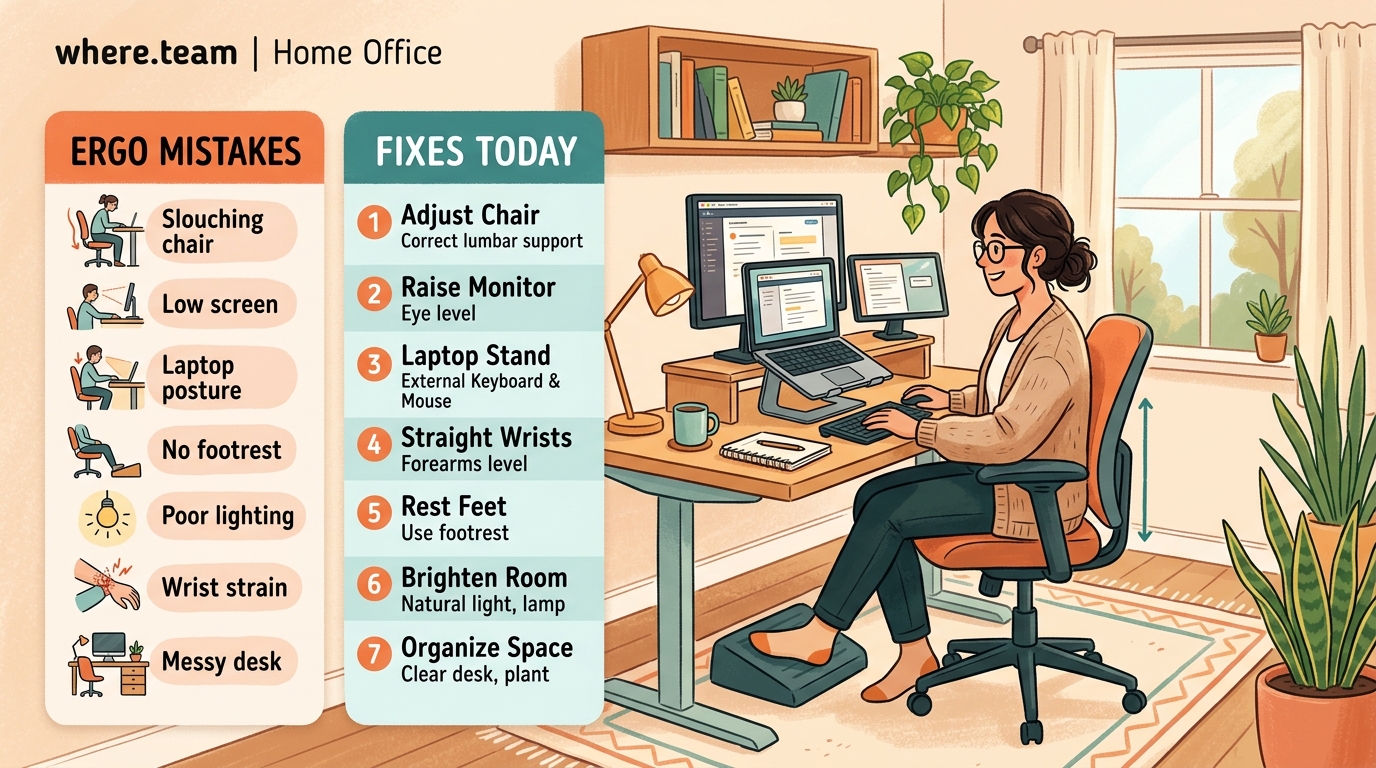
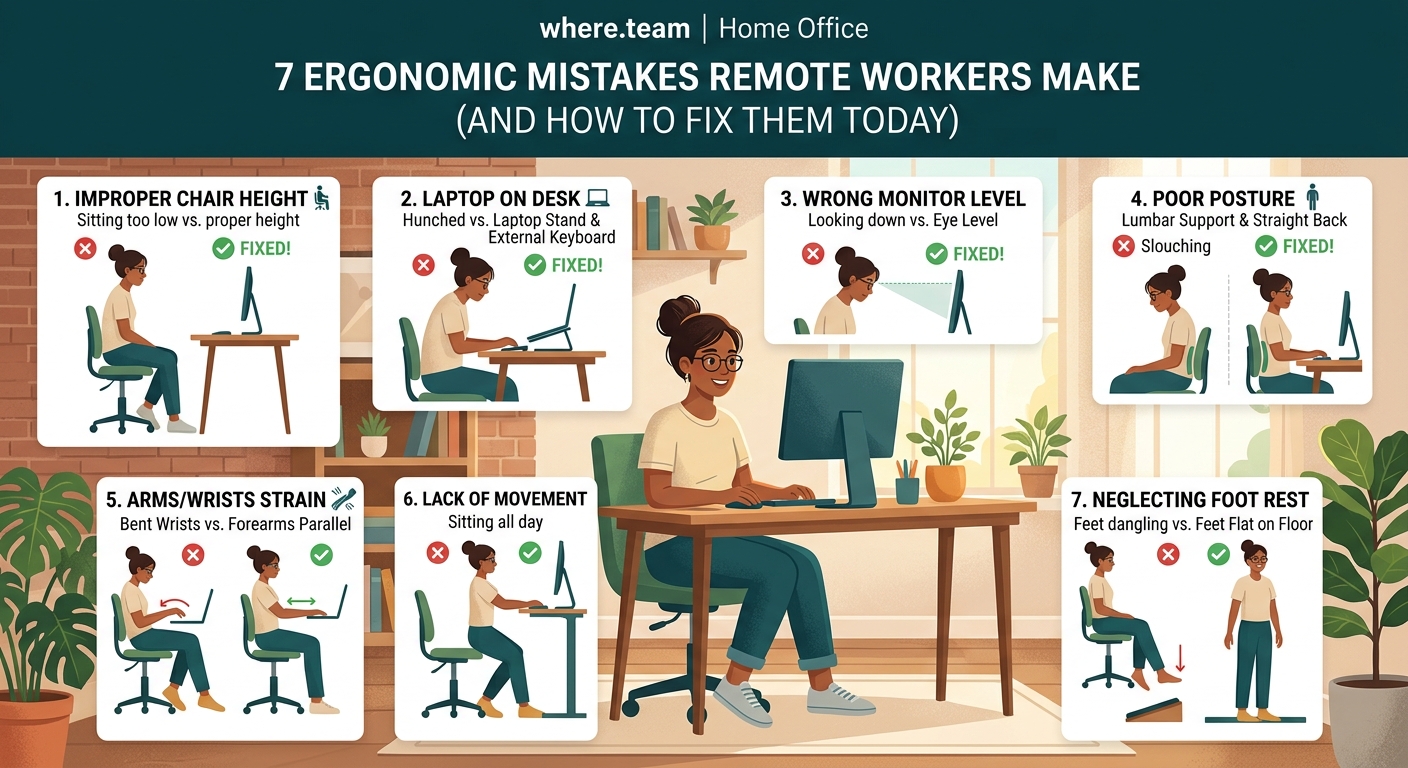
Here’s how to identify and fix the seven most common problems:
- Mistake 1: Working from soft furniture like couches or beds
-
Solution: Use a proper chair and desk with appropriate height
-
Mistake 2: Monitor positioned too low, causing neck strain
-
Solution: Raise screen to eye level using stands or books
-
Mistake 3: Keyboard and mouse creating wrist extension
-
Solution: Keep keyboard flat, mouse close, wrists neutral
-
Mistake 4: Chair lacking lumbar support
-
Solution: Add lumbar cushion or rolled towel at lower back
-
Mistake 5: Sitting static for hours without movement
-
Solution: Set 30-minute timers for position changes and stretches
-
Mistake 6: Poor lighting causing forward lean and squinting
-
Solution: Add desk lamp, position desk perpendicular to windows
-
Mistake 7: Using generic setup instead of customizing for your body
- Solution: Adjust every element based on your specific measurements
Your body will thank you tomorrow
Ergonomic improvements don’t require expensive equipment or complete office overhauls. Start with one change today. Raise your monitor. Add lumbar support. Set a movement timer.
Pay attention to how your body feels. Pain is information. Stiffness tells you something needs to change. Comfort means you’re on the right track.
Your workspace should support your work, not fight against your body. Make these adjustments now, and you’ll avoid the chronic pain that sidelines so many remote workers later.
Small changes compound. Fix one mistake this week. Address another next week. Within a month, you’ll wonder how you ever worked in that old setup. Your neck, back, and wrists will feel the difference every single day.
