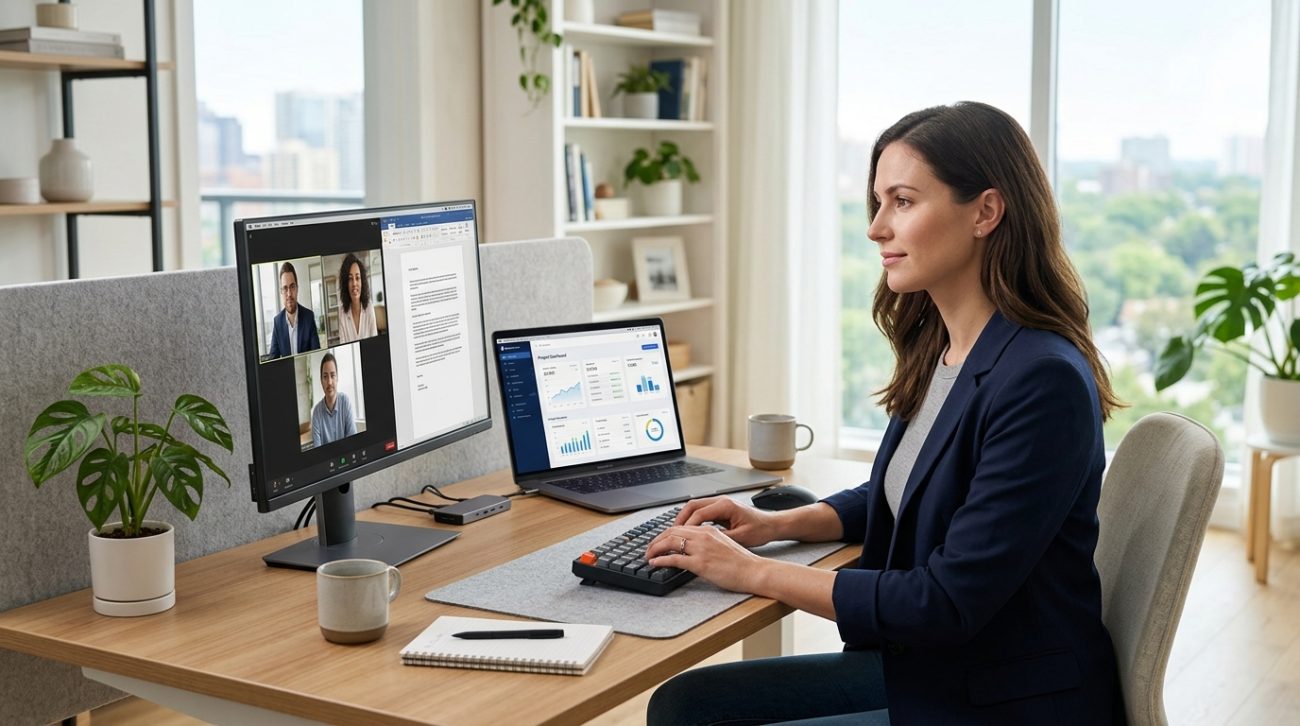
You’re staring at your laptop screen, toggling between Slack, Google Docs, and three browser tabs. Your neck hurts from leaning in. You’ve lost count of how many times you’ve minimized the wrong window today.
A second monitor seems like the obvious fix. But is it actually worth the investment, or just another piece of tech clutter?
A second monitor can boost productivity by 20 to 30 percent for multitasking work like data analysis, design, or coding. But for single-task workflows, writing-focused roles, or tight budgets, alternatives like virtual desktops, larger single screens, or better window management often deliver similar benefits without the cost or desk space requirements.
Who actually benefits from dual monitors
Not every remote worker needs two screens.
If your day involves constant context switching between apps, reference documents, or live collaboration tools, a second monitor can genuinely change how you work. Developers benefit from having code on one screen and documentation on the other. Designers keep their canvas on one display and their tool palettes on the second. Customer support reps can watch their ticketing system while responding in chat or email.
But if your work centers on one primary task at a time, like writing, reading, or attending video calls, you might not see much return. A larger single monitor or better organizational habits could solve the same problems without doubling your hardware footprint.
Here’s who tends to see real gains:
- Data analysts comparing spreadsheets or dashboards
- Video editors reviewing timelines and previews simultaneously
- Accountants cross-referencing invoices and ledgers
- Project managers tracking Gantt charts while updating task lists
- Researchers reading papers while taking notes
“The research is clear: dual monitors improve task completion speed for jobs requiring information from multiple sources. But they don’t help with focus-intensive work, and they can actually increase distraction if you’re prone to multitasking inefficiently.” — Gloria Mark, Professor of Informatics, UC Irvine
The real productivity math
Studies show dual monitor setups can increase productivity by 20 to 30 percent for specific workflows. That sounds impressive until you consider what “productivity” actually means in those studies.
Most research measures task completion speed, not quality or creative output. Copying data from one spreadsheet to another goes faster with two screens. Writing a thoughtful strategy document? Not so much.
The benefits also depend heavily on your work habits. If you already struggle with distraction, adding a second screen can make it worse. That extra display becomes a permanent home for Slack, email, or Twitter, pulling your attention away from deep work.
Here’s what the numbers actually tell us:
| Work Type | Productivity Gain | Primary Benefit |
|---|---|---|
| Data entry and analysis | 20 to 30% | Reduced window switching |
| Software development | 15 to 25% | Code and docs visible together |
| Graphic design | 10 to 20% | More canvas and tool space |
| Writing and editing | 0 to 5% | Minimal multitasking benefit |
| Video calls and meetings | 0 to 10% | Notes visible during calls |
The cost matters too. A decent second monitor runs $150 to $400. Add a monitor arm or stand for another $30 to $100. If you’re working from a laptop, you might need a docking station ($100 to $300) to connect everything cleanly.
Compare that investment to other home office upgrades. A better chair, improved lighting, or noise-canceling headphones that actually work for remote workers might deliver more comfort and focus per dollar spent.
Common mistakes people make with dual monitors
Buying a second screen doesn’t automatically make you more productive. Most people set them up wrong.
The biggest error is treating both monitors as equal workspaces. Your neck can’t comfortably swivel between two screens all day. One should be your primary display, positioned directly in front of you. The second should be angled to the side for reference material, chat windows, or monitoring tools.
Another mistake is mismatched displays. Pairing a 4K monitor with a 1080p laptop screen creates visual inconsistency that makes your eyes work harder. Color temperature differences between displays can cause eye strain during long work sessions.
Poor positioning causes physical problems. If your monitors are too high, you’ll crane your neck upward. Too far apart, and you’ll develop tension from constant head turning. Too close, and you’ll lean forward, wrecking your posture.
Here are the setup errors that undermine dual monitor benefits:
- Placing both monitors at equal angles instead of making one primary
- Setting them at different heights or distances from your eyes
- Ignoring cable management, creating desk clutter and trip hazards
- Using mismatched resolution or refresh rates between displays
- Failing to configure display scaling properly in your operating system
- Positioning monitors perpendicular instead of at gentle angles
- Skipping ergonomic adjustments like monitor arms or risers
The ultimate guide to building a home office that actually boosts productivity covers proper monitor positioning in detail, but the short version is this: your primary screen should sit an arm’s length away, with the top of the display at or slightly below eye level.
Alternatives that might work better
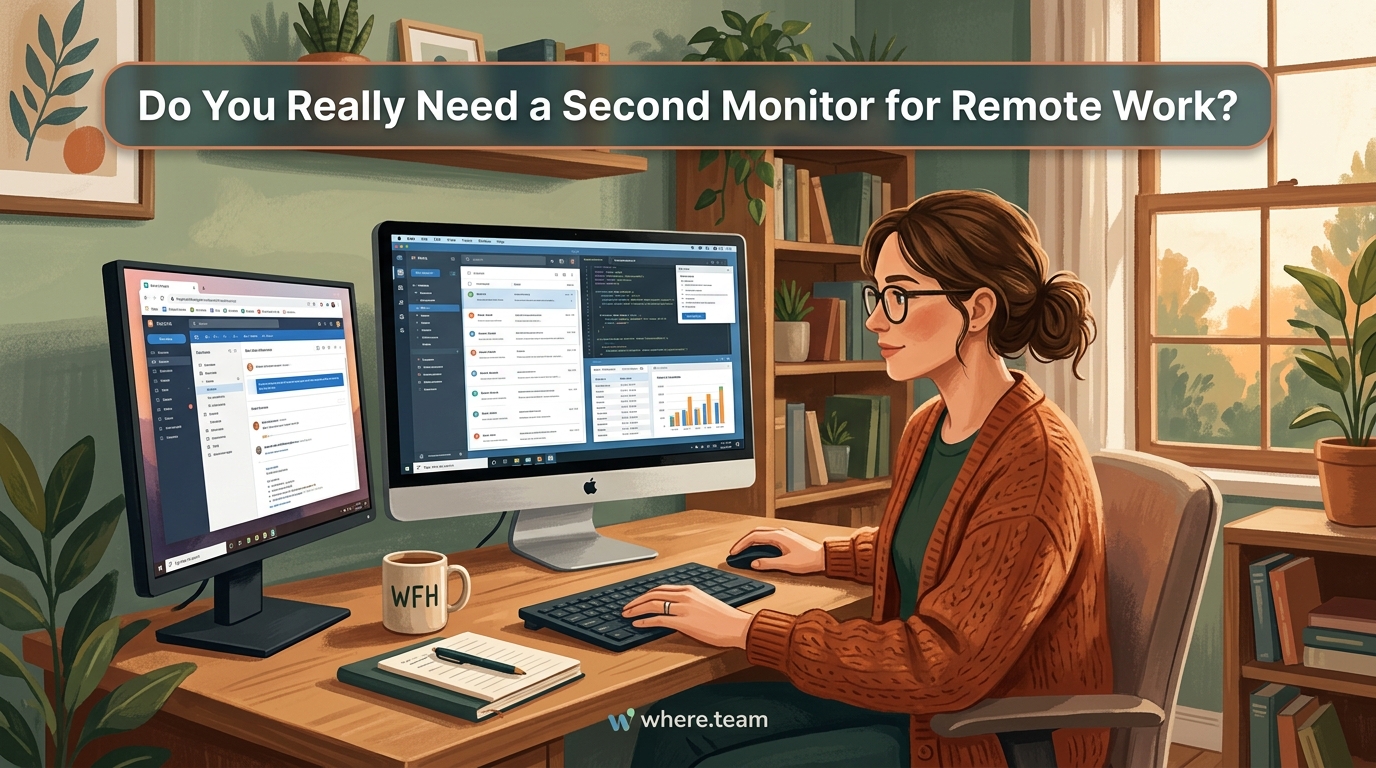
Before spending hundreds on a second monitor, consider these options.
A single ultrawide monitor (34 inches or larger) gives you the screen real estate of two displays without the bezel gap in the middle. You can snap windows side by side just as easily, and your neck stays centered. The downside is cost: ultrawides typically run $400 to $1,200.
Virtual desktops cost nothing and work on every operating system. Windows, macOS, and Linux all let you create multiple desktop spaces and switch between them with keyboard shortcuts. One desktop for communication tools, another for focused work, a third for research. It takes a week to build the muscle memory, but it eliminates window clutter without buying hardware.
Better window management tools can transform a single screen. Apps like Rectangle (macOS), PowerToys (Windows), or i3 (Linux) let you snap windows into precise layouts with keyboard commands. You can create custom zones for different app combinations and switch between them instantly.
Larger single monitors also deserve consideration. A 27-inch or 32-inch 4K display gives you enough pixels to run three or four windows comfortably. You get the benefits of more screen space without the ergonomic challenges of turning your head constantly.
If you work from different locations, portability matters. A portable USB-C monitor (13 to 17 inches) weighs under two pounds and fits in a laptop bag. You can set up a dual monitor workspace at home, at a coffee shop, or in a coworking space with the best meeting room technology.
The ergonomic reality nobody mentions
Two monitors create new physical challenges.
Your head weighs about 11 pounds. Every time you turn to look at your secondary monitor, your neck muscles work to support that weight at an angle. Do that a few hundred times per day, and you’re asking for tension headaches and shoulder pain.
The solution isn’t skipping the second monitor entirely. It’s being strategic about what you put on it. Reserve your secondary display for information you glance at occasionally, not content you need to stare at for minutes at a time. Email notifications, chat windows, system monitoring tools, or reference documents work well. Active work belongs on your primary screen.
Monitor height matters more than most people realize. If your displays sit too high, you’ll tilt your head back, compressing the vertebrae in your upper spine. Too low, and you’ll hunch forward. The ideal position puts the top of your screen at or just below eye level when you’re sitting with proper posture.
Distance affects eye strain. Monitors should sit about an arm’s length away (roughly 20 to 30 inches). Closer, and your eyes work harder to focus. Farther, and you’ll lean forward to read text. If you find yourself squinting or leaning, adjust your display scaling settings rather than moving closer.
The ergonomic mistakes remote workers make extend beyond monitors, but screen positioning is one of the most common problems. Fixing it prevents cumulative strain that builds over months and years.
When a second monitor makes financial sense
The math changes based on your situation.
If your employer provides a home office stipend, using it for a second monitor is often a smart choice. You’re not spending your own money, and even modest productivity gains pay for themselves from your company’s perspective.
Freelancers and contractors need to calculate differently. Will a second monitor let you bill more hours or complete projects faster? If you’re already maxing out your available work time, productivity gains translate directly to income. If you’re limited by client demand rather than output capacity, the monitor won’t change your earnings.
The equipment also matters for tax purposes. In many jurisdictions, home office equipment qualifies as a business expense. Check with a tax professional, but that second monitor might reduce your tax burden if you’re self-employed.
Lifespan affects the real cost too. A quality monitor lasts five to seven years. Spread a $300 purchase over six years, and you’re paying about $4 per month. Frame it that way, and the decision becomes easier.
Consider your workspace constraints. If you’re working from a small apartment or shared space, a second monitor might not fit physically. A cramped desk with two displays creates more stress than productivity. In that case, investing in a standing desk setup for remote work or better organizational tools might serve you better.
What to look for if you do buy one
Not all second monitors are created equal.
Match your laptop or primary display resolution as closely as possible. If you’re running a 1440p main screen, get a 1440p secondary. Mixing resolutions forces your eyes to adjust constantly, causing fatigue.
Size matters less than you’d think. A 24-inch secondary monitor works well for most people. Going larger than 27 inches on a secondary display can actually hurt ergonomics because you’ll turn your head too far to see the edges.
Panel type affects your experience. IPS panels offer better color accuracy and viewing angles than VA or TN panels. If you do any design work, photo editing, or video production, spend the extra $50 for IPS.
Connectivity determines how easy setup will be. USB-C monitors with power delivery let you connect a single cable to your laptop, charging it while extending your display. HDMI and DisplayPort work fine too, but you’ll need separate power for your laptop.
Adjustability saves money on accessories. A monitor with built-in height, tilt, and swivel adjustments eliminates the need for a separate arm or stand. VESA mount compatibility gives you options if you want to add an arm later.
Here’s a comparison of monitor features and their real-world value:
| Feature | Worth Paying Extra? | Why It Matters |
|---|---|---|
| IPS panel vs TN/VA | Yes for design work, maybe for others | Better colors and viewing angles |
| 4K resolution | Only if your primary is also 4K | Matching resolution reduces eye strain |
| USB-C with power delivery | Yes for laptop users | Cleaner desk, one-cable connection |
| Built-in speakers | No | Dedicated speakers or headphones sound better |
| High refresh rate (120Hz+) | No for office work | Matters for gaming, not documents |
| HDR support | No for productivity | Useful for media work, overkill otherwise |
How to test before you commit
Don’t trust your assumptions about whether you need a second monitor. Test the concept first.
Borrow a monitor from a friend for a week. Use it exactly how you’d use a permanent second display. Track whether you actually feel more productive or just think you should.
Try virtual desktops for two weeks before buying hardware. Set up separate spaces for different types of work. If you find yourself constantly wishing for physical screens instead of virtual ones, that’s a sign a second monitor would help.
Measure your actual workflow. For three days, count how many times you switch between windows or apps. If you’re doing it more than 50 times per day, a second screen might genuinely help. If it’s fewer than 20, you probably won’t see much benefit.
Consider your meeting load too. If you spend hours per day on video calls, having meeting participants on one screen while you take notes or reference documents on another can reduce the cognitive load. But if meetings are just a small part of your day, the benefit shrinks.
Some people find that remote meetings feel exhausting regardless of their monitor setup. Adding a second screen won’t fix meeting fatigue caused by back-to-back calls, poor facilitation, or lack of breaks.
The hidden costs nobody talks about
A second monitor changes more than your desk setup.
Power consumption doubles. Two monitors running eight hours per day add roughly $20 to $40 per year to your electricity bill, depending on display size and local energy costs. Not huge, but worth knowing.
Desk space becomes precious. A dual monitor setup typically requires 48 to 60 inches of desk width to position both screens comfortably. If you’re working on a small desk, you might sacrifice space for notebooks, coffee, or other essentials.
Cable management gets complicated. Two monitors mean two power cables, two video cables, and potentially USB cables if you’re using a hub or docking station. Without proper cable management, your desk becomes a tangled mess.
Cleaning and maintenance double. Two screens collect twice the dust and fingerprints. You’ll spend more time wiping them down to maintain visibility.
Resale value is low. Unlike laptops or tablets, used monitors don’t hold value well. Expect to recover maybe 30 to 50 percent of what you paid if you decide to sell later.
Making the call for your situation
The answer to whether you need a second monitor depends entirely on your specific work.
If you’re constantly referencing multiple sources, comparing documents, or monitoring systems while doing other tasks, a second monitor will probably help. The productivity gains are real for those workflows.
If you do focused, single-task work like writing, reading, or creative thinking, you’ll likely see minimal benefit. The extra screen might even become a distraction.
Budget matters. If $300 feels like a lot right now, spend it on something with clearer returns: a better chair, improved lighting, or professional development. Your monitor setup won’t matter if your back hurts or your skills stagnate.
Physical space is a real constraint. A cramped workspace with two monitors creates stress. A clean, organized single-monitor setup beats a cluttered dual-monitor mess every time.
Your workspace should work for you, not against you
The best monitor setup is the one that supports how you actually work, not how you think you should work.
Pay attention to what slows you down during your day. If it’s window switching and losing track of information, a second monitor might help. If it’s distractions, unclear priorities, or too many meetings, more screen space won’t solve those problems.
Start with the free or cheap options: virtual desktops, better window management, or rearranging your existing setup. If those don’t cut it after a few weeks of honest effort, then consider investing in additional hardware.
Your home office should evolve as your work does. What works today might not work six months from now. Stay flexible, test assumptions, and build a workspace that genuinely makes your job easier.
