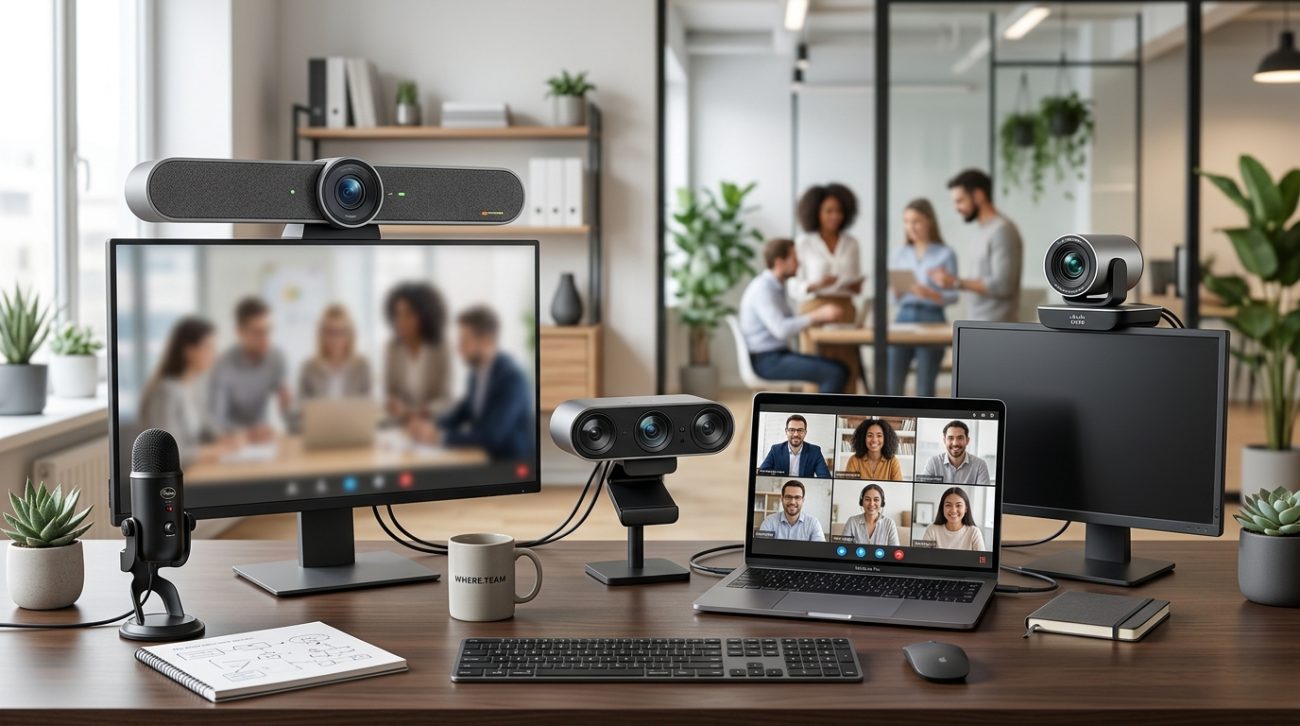
Your laptop’s built-in camera makes you look like a grainy ghost from 2010. Colleagues squint to see you. Your expressions get lost in pixelated shadows. And when you’re pitching to a client or leading a team standup, that blurry video undermines everything you say.
A dedicated webcam changes the entire dynamic. Better sensors capture more light. Superior lenses deliver sharper focus. And the right camera positions you as someone who takes their remote work seriously.
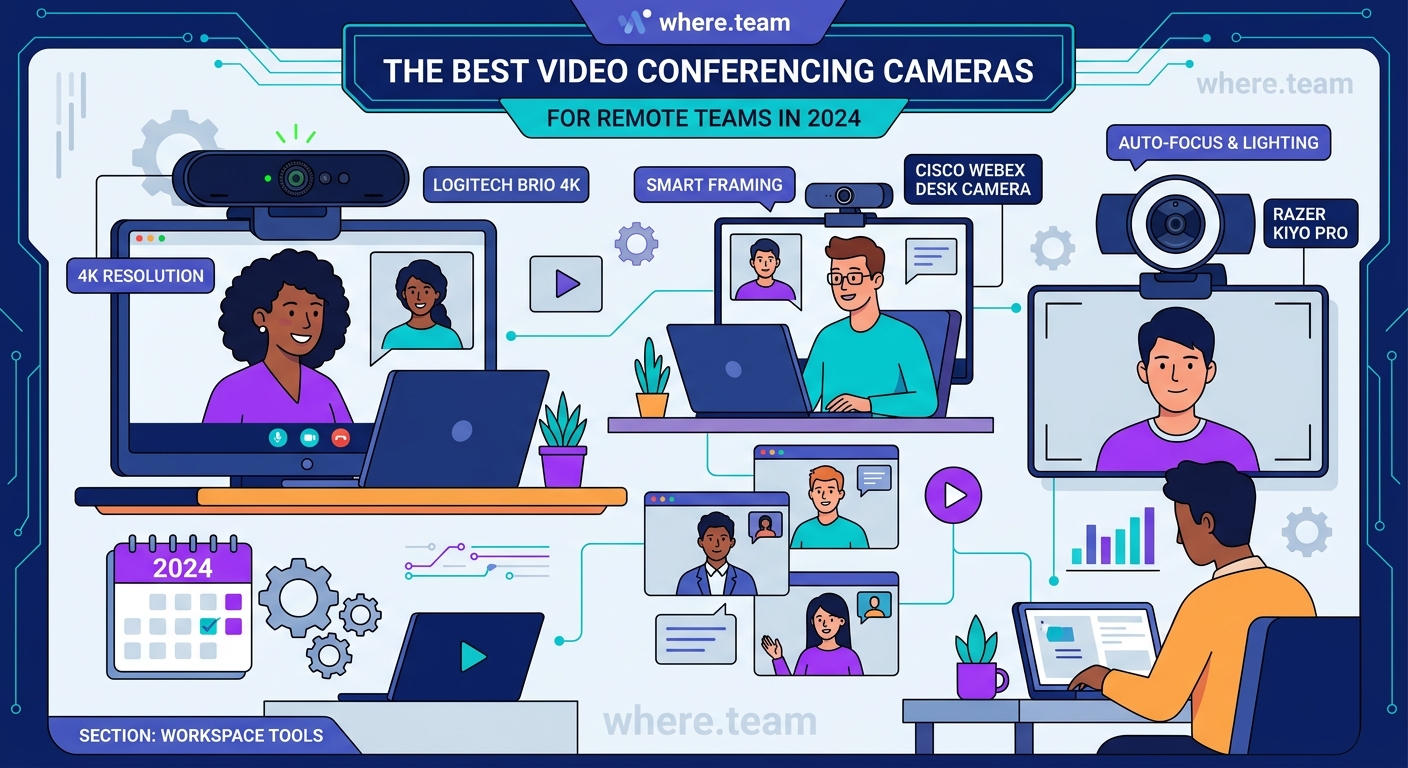
The best webcams for video conferencing combine 1080p or 4K resolution, reliable autofocus, wide field of view options, and quality built-in microphones. Top performers include the Logitech Brio 4K for versatility, Razer Kiyo Pro for low light, and Anker PowerConf C300 for budget-conscious teams. Prioritize cameras with USB-C connectivity and adjustable mounting for flexibility across home offices and coworking spaces.
Why your built-in camera isn’t cutting it
Laptop manufacturers treat webcams as an afterthought. They squeeze tiny sensors into the thinnest possible bezels. The result? Washed-out colors, poor low-light performance, and fixed focus that can’t adapt when you lean forward or shift in your chair.
Built-in cameras also lock you into awkward angles. The lens sits below eye level, creating an unflattering upward view. You end up looking down at your screen, which reads as disengaged or distracted during important conversations.
External webcams solve both problems. You can position them at eye level on a monitor or tripod. You get control over framing, background blur, and exposure settings. And when lighting conditions change throughout the day, a quality camera adjusts automatically instead of turning you into a silhouette.
What separates good webcams from great ones
Resolution matters, but it’s not the only factor. A 4K camera means nothing if the lens is cheap or the sensor struggles in typical home office lighting.
Sensor size determines light sensitivity. Larger sensors capture more photons, which translates to clearer images in dim rooms or spaces with mixed lighting. This becomes critical during early morning standups or late afternoon calls when natural light fades.
Autofocus speed affects professionalism. Cameras that hunt for focus create distracting moments where you blur in and out. The best models lock onto your face instantly and track movement smoothly when you gesture or lean back.
Field of view flexibility matters more than you’d think. A 65-degree lens works for solo calls. But when you need to include a colleague sitting beside you, or show a whiteboard, you’ll want the option to widen to 90 degrees without distortion.
Compression and encoding impact bandwidth. Some webcams handle video processing internally, reducing the load on your computer. This prevents dropped frames during bandwidth-heavy calls with screen sharing and multiple participants.
Top webcams for different remote work scenarios
| Camera Model | Best For | Key Strength | Potential Limitation |
|---|---|---|---|
| Logitech Brio 4K | All-around performance | 4K resolution with HDR | Higher price point |
| Razer Kiyo Pro | Low-light environments | Uncompressed 1080p at 60fps | Limited field of view adjustment |
| Anker PowerConf C300 | Budget-conscious teams | AI framing and tracking | Requires good ambient lighting |
| Dell UltraSharp | Dual-monitor setups | Magnetic mount system | Overkill for occasional users |
| Elgato Facecam | Content creators who also meet | Studio-quality color | No built-in microphone |
Each camera excels in specific conditions. Your choice depends on your typical meeting environment and how often you’re on camera.
Setting up your webcam for maximum impact
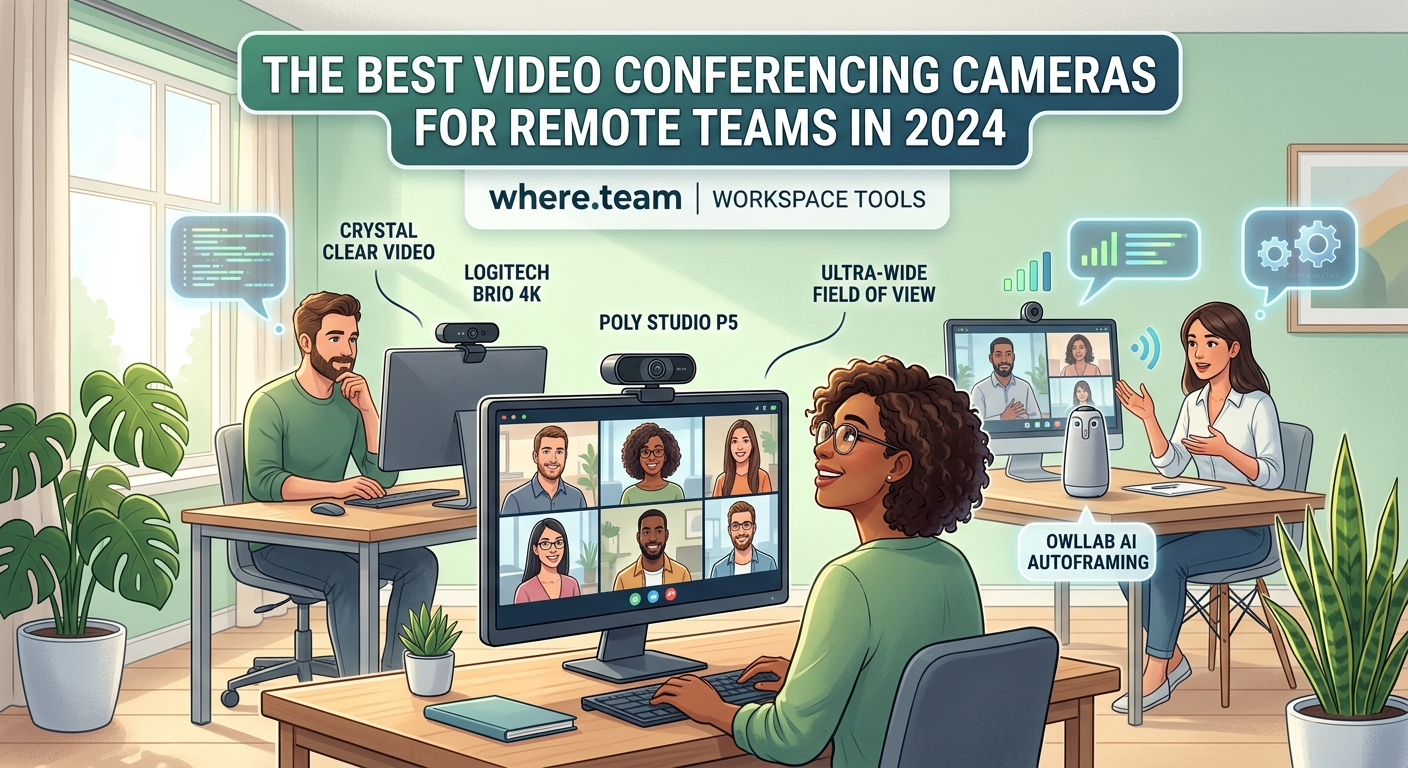
Buying the right camera is half the battle. Positioning and configuration determine whether you actually look professional or just slightly less blurry than before.
1. Mount at eye level or slightly above. This creates a natural, engaging angle that mimics in-person conversation. Avoid placing the camera below your monitor, which emphasizes your chin and nostrils.
2. Position yourself two to three feet from the lens. Too close creates distortion. Too far makes you a tiny figure in the frame. Arm’s length is usually ideal.
3. Adjust lighting before adjusting camera settings. Face a window or lamp. Avoid backlighting from windows behind you. Even the best webcam can’t fix poor lighting fundamentals.
4. Test your background. A cluttered background distracts viewers. A blank wall feels sterile. Aim for a middle ground with a bookshelf, plant, or subtle artwork that adds personality without competing for attention.
5. Configure software settings in your video platform. Most conferencing tools let you adjust brightness, contrast, and color temperature. Make small tweaks while watching the preview until you look natural, not oversaturated or washed out.
“The camera you choose matters less than how you use it. I’ve seen people look terrible on expensive setups and amazing on budget webcams because they understood lighting and framing. Master the basics first, then upgrade your gear.” – Remote work consultant with eight years of virtual facilitation experience
Features that actually matter in daily use
Marketing specs can mislead. A camera might boast 4K resolution but deliver mediocre results because other components underperform.
Privacy shutters save paranoia. Physical covers let you block the lens when you’re not on calls. This beats wondering whether your camera is secretly active or scrambling to find tape when you need quick peace of mind.
Dual microphones improve audio quality. While you’ll probably use a dedicated mic for important calls, built-in options provide backup when your primary audio fails or you’re joining from a different location.
Plug-and-play compatibility reduces friction. The best webcams work instantly on Windows, Mac, and Linux without driver installations. You plug in the USB cable and you’re ready.
Adjustable clips accommodate different monitors. Thin laptop screens need different mounting than thick external monitors. Universal clips prevent the frustration of buying a camera that won’t physically attach to your setup.
Low-light correction algorithms matter more than megapixels. Cameras with smart exposure adjustment maintain image quality when you’re working from a coffee shop corner or a dimly lit hotel room.
Common mistakes when choosing a webcam
People often prioritize the wrong factors and end up disappointed with their purchase.
Chasing maximum resolution without considering bandwidth. A 4K stream requires significant upload speed. If your internet connection is inconsistent, you’ll experience more dropped frames and lag than with a reliable 1080p camera.
Ignoring your computer’s processing power. Older laptops struggle to process high-resolution video while running other applications. You might get better performance from a 1080p camera that doesn’t tax your CPU.
Forgetting about travel needs. A large desktop camera with a permanent mount works great at home but becomes a liability when you need to work from a coworking space or client office. Consider portability if you move between locations.
Overlooking software compatibility. Some cameras require proprietary software to access advanced features. If you use Linux or prefer minimal software installations, verify that basic functionality works without additional downloads.
Buying based on influencer recommendations without matching use cases. A camera perfect for streaming eight-hour sessions might be overkill for someone who joins three 30-minute meetings per week.
Budget considerations and value calculations
Webcam prices range from $50 to $300. The right investment depends on how video quality affects your work.
If you’re job searching or freelancing, a quality camera pays for itself by making you more memorable in interviews and client calls. First impressions matter, and crisp video signals professionalism.
For team leaders running daily standups, the upgrade reduces meeting fatigue by making interactions feel more natural and engaged. People connect better when they can see clear facial expressions and body language.
Budget cameras ($50-$80) work fine for occasional users who prioritize function over perfection. Mid-range options ($100-$150) offer the best balance of quality and affordability for regular remote workers. Premium models ($200-$300) make sense for executives, consultants, or anyone whose professional presence directly impacts revenue.
Consider the webcam an investment in your remote work infrastructure, alongside your desk, chair, and monitor. You’ll use it hundreds of times per year. The per-use cost becomes negligible.
Webcams for hybrid and flexible work arrangements
Hybrid schedules create unique challenges. You need equipment that works equally well at home and in the office.
Portable webcams with protective cases let you maintain consistent video quality across locations. You avoid the jarring shift between your home setup and whatever random conference room camera your office provides.
Some teams establish rotating meeting schedules that reduce synchronous video time. When you do meet live, having reliable equipment makes those interactions more valuable and less frustrating.
For companies planning team retreats, bringing quality webcams ensures remote participants can join key sessions without feeling like second-class attendees watching through a potato.
Technical specifications decoded
Understanding what the numbers actually mean helps you compare options intelligently.
- Frame rate: 30fps handles most business calls. 60fps provides smoother motion for presentations with lots of movement or gestures.
- Bitrate: Higher bitrates preserve detail but consume more bandwidth. Look for cameras that adjust dynamically based on connection quality.
- Codec support: H.264 offers universal compatibility. H.265 provides better compression but requires more processing power.
- USB connectivity: USB 3.0 or USB-C handles high-resolution streams without bottlenecks. USB 2.0 limits you to basic 720p or compressed 1080p.
- Diagonal field of view: 78 degrees captures you and minimal background. 90 degrees includes more context. Anything wider risks distortion at the edges.
These specs interact with each other. A camera with 4K resolution, 60fps, and high bitrate needs robust USB-C connectivity and a powerful computer to process the stream.
Maintenance and longevity
Webcams are relatively maintenance-free, but a few habits extend their lifespan and performance.
Clean the lens monthly with a microfiber cloth. Dust and fingerprints accumulate gradually, degrading image quality so slowly you don’t notice until you see old footage and realize how much clearer you used to look.
Update firmware when manufacturers release patches. These updates often improve autofocus algorithms, color accuracy, or compatibility with new operating systems.
Store portable cameras in protective cases when traveling. Lenses scratch easily in bags alongside keys, chargers, and other metal objects.
Test your setup before important calls. Nothing kills credibility faster than spending the first five minutes of a client meeting troubleshooting why your camera isn’t recognized.
Making the final decision
Start by honestly assessing your needs. How many hours per week do you spend on video calls? What lighting conditions do you typically work in? Do you need portability or is this camera staying on your home office desk?
Read recent reviews from users with similar setups and use cases. A camera that works beautifully on a Mac might have driver issues on Windows. One that excels in bright offices might disappoint in basement home offices.
Consider buying from retailers with generous return policies. The only way to know if a webcam works for your specific situation is to test it in your actual workspace during real calls.
The best webcams for video conferencing are the ones you’ll actually use consistently. That means they need to be easy to set up, reliable day after day, and good enough that you forget about the technology and focus on the conversation.
Your video presence is your remote presence
Remote work erases many traditional professional signals. Your office, your commute, your desk location no longer communicate anything about your role or competence.
What remains? Your voice and your video. The quality of your audio and image becomes your professional presence.
A quality webcam doesn’t make you better at your job. But it removes a barrier between you and the people you’re trying to reach. Your ideas come through clearly. Your expressions register. Your engagement shows.
That clarity matters in every video interaction, from casual team check-ins to high-stakes presentations. Get the camera right, and you can focus on the work that actually matters.
